Help centre / Selling
Orders, returns & refunds
What each order status means, and how to ship, cancel, return and refund.
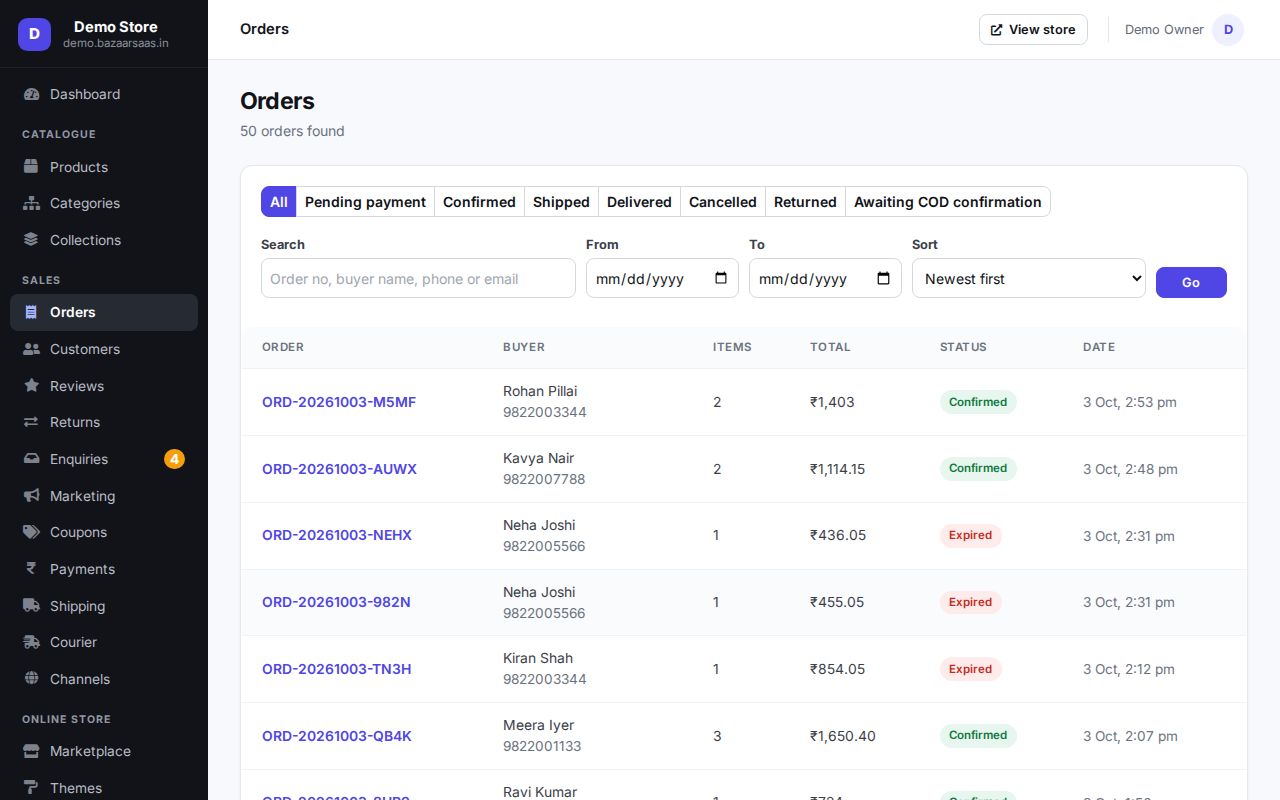
Order statuses
| Status | Meaning |
|---|---|
| Pending payment | Placed with online payment, not paid yet. Items are reserved for a while. |
| Awaiting confirmation | A COD order waiting for the buyer to confirm it on WhatsApp (COD Shield). |
| Confirmed | Paid, or a confirmed COD order — ready to pack. |
| Shipped | Handed to the courier. |
| Delivered | The buyer has it. |
| Cancelled | Cancelled by you, the buyer or automatically (unpaid / unconfirmed). Stock goes back. |
| Returned | Every item came back through an approved return. |
Work tabs
Orders opens on tabs that follow the day's work, each with how many orders it holds:
| Tab | Orders in it |
|---|---|
| New | waiting for payment, or for you or the buyer to confirm (COD) |
| To pack | confirmed, not packed yet |
| Packed | packed, not yet put out for the courier |
| Ready to ship | waiting for the courier |
| Shipped · Delivered · Cancelled | as they say |
| Returns | returned, or with a return request |
In To pack, press Mark packed on an order — or tick several and use Mark packed above the list — and they move to Packed; Ready to ship moves them on again. Who did it and when shows on the order list and in the order's trail. Shipping the order moves it to Shipped. Confirmed orders also show the day they should ship by — see Dispatch deadline. Search, dates and sort work inside every tab. Team members who can only view orders see the tabs but not the buttons.
Pick list: above the list, Pick list opens a sheet of everything to fetch from the shelves — one line per product and variant with its SKU, the total quantity and the order numbers it goes into, plus a box to tick. With orders ticked it covers just those; otherwise the whole To pack tab. Print fits it on A4; Download CSV gives the same lines for a spreadsheet.
Packing slips: Packing slips (next to Pick list, for the ticked orders or the whole To pack tab) and Packing slip on an order page give one PDF with a page per order, to put in the parcel: your store, the order number with a barcode your scanner reads, the ship-to address, the items with a box to tick, and whether the courier collects cash. Slips are in your store's main language. Turn prices off (for gifts) or add a line printed on every slip — a thank-you or a coupon — in Shipping → Packing slips. Your private order note is never printed.
Working an order
Open it from Orders (filter by status, search, or pick dates). The search takes an order number, AWB, buyer name, phone, email, or an item's SKU or barcode. Scan a packing slip's barcode (or type an AWB or order number in full) and that order opens straight away; on a phone, use the camera button next to the search box.
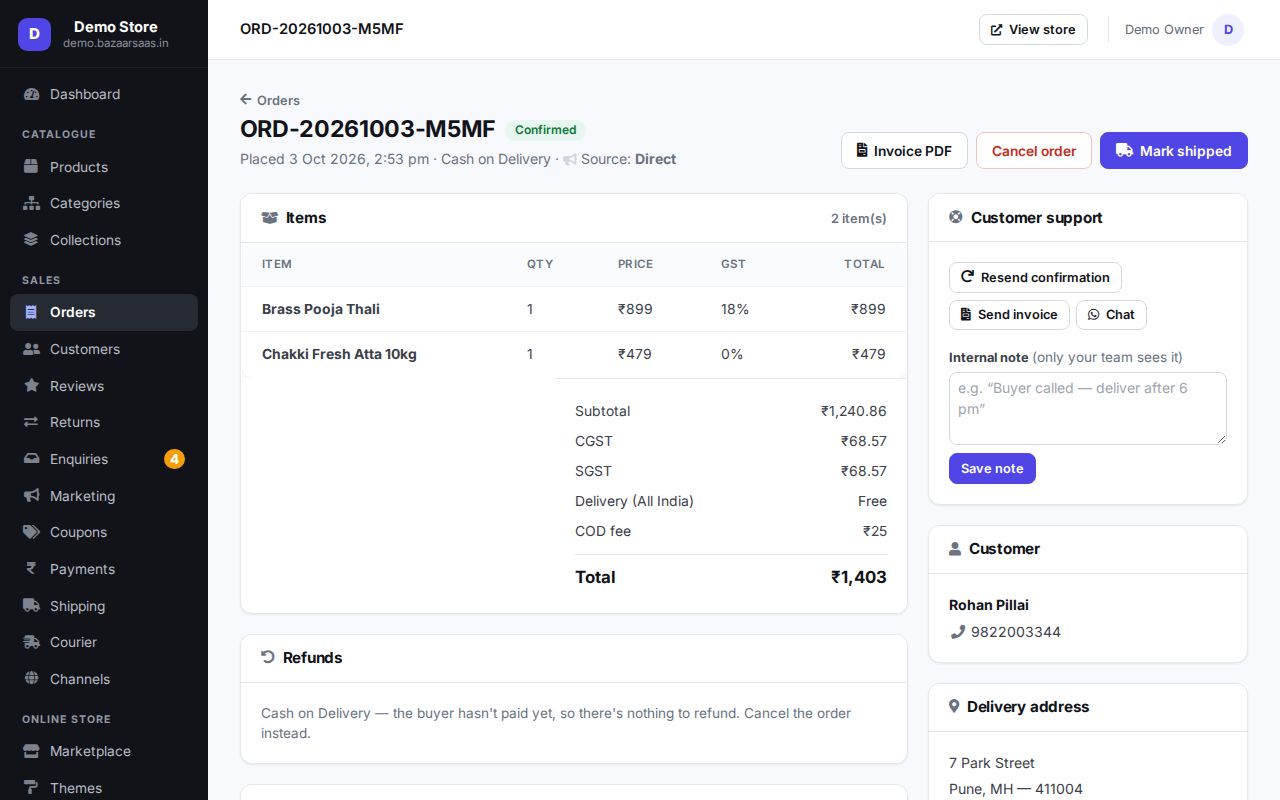
From the order page you can:
- create the courier shipment and print the label — see Shipping & delivery,
- mark it shipped or delivered,
- cancel it (stock is released; paid orders are refunded),
- open the GST invoice,
- refund all or part of it,
- add a private note your team sees and the buyer doesn't.
The buyer gets order confirmed / shipped / delivered messages by email and WhatsApp (once set up).
Buyers cancelling
A signed-in buyer can cancel their own order from its page (Cancel this order, with a reason) until you mark it packed — after that, or once it has a label or has shipped, the button is gone and the cancel is refused. The items go back in stock, an online payment is refunded in full through your gateway (COD orders have nothing to refund), and you get an email and a push alert with their reason (switch these in Settings → Notifications — "Buyer cancelled"). Don't want this? Turn off Buyer cancellations in Shipping.
Returns
Buyers request a return from their order page after delivery, choosing items and a reason. You see requests in Returns:
- Approve — the refund for the returned items is issued through the normal refund flow, and you can put the items back in stock at the same time (the size or colour that came back goes back on its own shelf).
- Reject — with a note the buyer reads.
The buyer sees the decision and the refund on their order page.
Returns desk
When returned parcels arrive, open Returns → Returns desk. Scan (or type) the return AWB, the original AWB or the order number and the return opens. For each item, enter how many came back good, damaged, as the wrong item or were missing — they must add up to the quantity returned — add a note if you like, and save:
- Good units go back in stock (unless you already put them back when approving the return).
- Damaged units are recorded as a stock loss (see Stock losses) at the cost price the order was sold at.
- If stock was already added back on approval, damaged, wrong and missing units come off stock again.
The desk also lists every approved return that hasn't arrived yet, with how many days it has been waiting. A return not received within 15 days of approval is marked Overdue — chase the courier or the buyer.
Proof and claims
On a return's desk page you can keep proof: unboxing photos or a video (JPG, PNG, WebP, MP4 or WebM, up to 25 MB each, 12 per return) and the courier's proof (a POD, a weight slip, a tracking screenshot). Couriers and marketplaces ask for these before they pay for a damaged, wrong or missing return.
To ask for money back, raise a claim on the same page: who it is with (courier, marketplace or other — the return's courier is filled in), the amount (it starts at what the damaged, wrong and missing items sold for), their claim or ticket number and a note. Raise it with them first, then record it here. When they decide, mark it Approved (with the amount they agreed, if less) or Rejected.
Returns → Return claims lists every claim — raised, approved or rejected — with the total claimed and the total approved.
Enquiries
Messages from your store's Contact page arrive in Enquiries, with the buyer's phone or email and order number if they gave one.
Messages
Messages lists every email and WhatsApp your store sent or tried to send — newest first, with the order it was about. Filter by channel or Failed, or search an order number. Addresses are partly hidden. A failed order confirmation, invoice, shipping update or payment reminder has Send again: it is sent with the order's current details, and the new attempt shows as its own row. Choose what goes out in Settings → Notifications and change the wording in Settings → Email wording.
Still stuck? Talk to us — we'll help you set it up. Talk to us