Help centre / Selling
Shipping & delivery
Delivery charges by state, free delivery, couriers, labels and tracking.
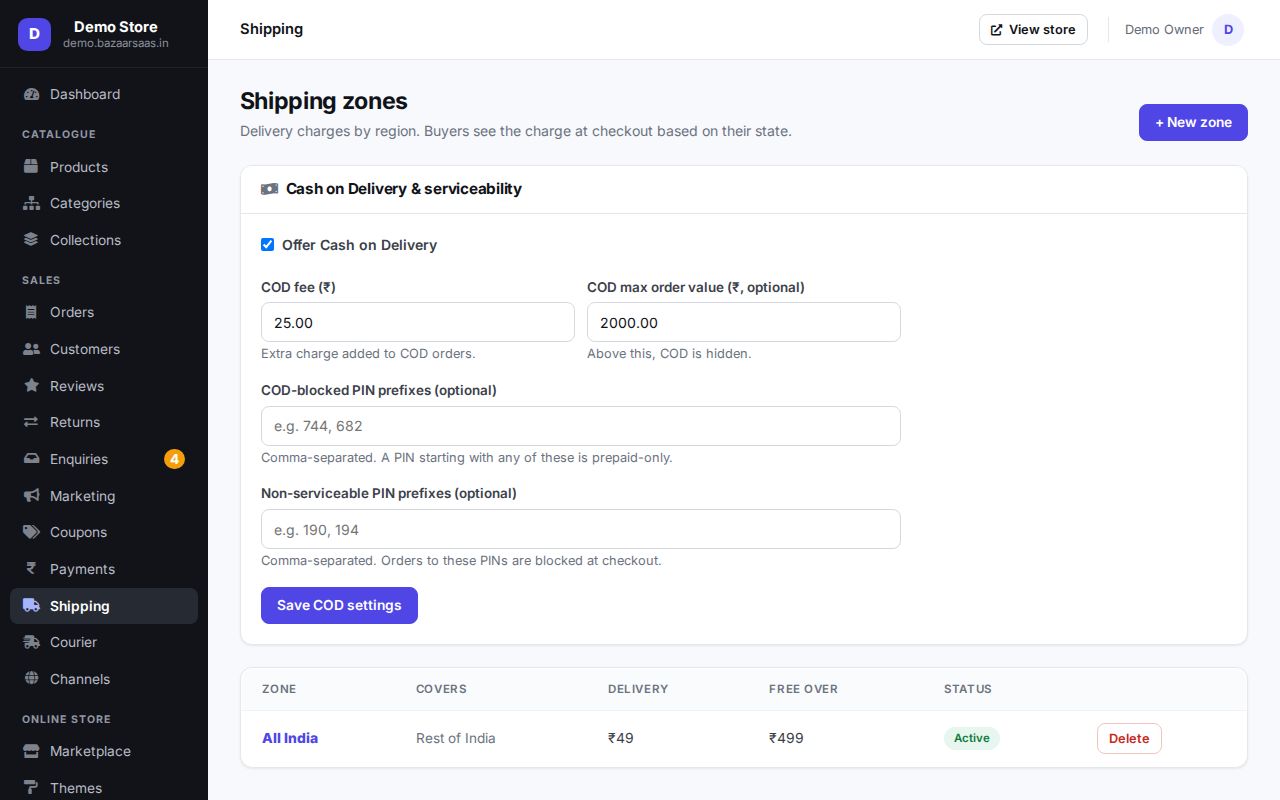
Delivery charges (zones)
Shipping holds your zones. Each zone is a group of states with:
- a flat delivery charge, waived when the order crosses a free-delivery value — or
- always free.
One zone can be the rest of India catch-all. The buyer sees the charge at checkout as soon as they enter their PIN code and state.
Dispatch deadline
Under Shipping → Dispatch deadline, set how many working days you take to ship a confirmed order (2 unless you change it; 0 = no deadline). Days are counted in India time from the day after the order, and Sundays don't count — an order placed on Saturday with 2 working days should ship by Tuesday. Every confirmed order shows its ship by day on Orders; orders due today and late ones are marked and counted at the top of Orders and on the dashboard — tap the count to see just those orders.
Ready to ship needs a label
Turn on Shipping → Ready to ship needs a label and an order can be marked Ready to ship only once its courier shipment (with its label) exists, so nothing waits for pickup unlabelled. Orders without a label are skipped with the reason ("has no courier label yet — create its shipment first"); the others move as usual.
PIN codes
At checkout the buyer's PIN code fills in the state (and the city, when known) automatically, and PIN codes that can't take deliveries are refused before the order is placed.
Couriers: labels and tracking
In Courier, connect Shiprocket or Delhivery with your account details and pickup address. Then, on an order:
- Create shipment — the courier assigns an AWB number.
- Print the label (and the manifest for pickups).
- Tracking updates arrive automatically; the order moves to Shipped and then Delivered.
Without a courier you can still mark orders shipped yourself and add the tracking number.
Comparing courier rates
Connected more than one courier account (say Shiprocket and Delhivery)? On an order, Compare courier rates asks every active account at once and lists all their couriers side by side — price, delivery days, rating and whether they take COD — cheapest first, with the Cheapest and Fastest marked. Press Ship with this (or Assign) on any row to book it with that account; the order remembers the account, so its label, tracking and return pickup go through the same one. An account that can't answer (wrong password, outage) is named under the list and doesn't hide the others.
Printing many labels at once
On Orders, in the To pack, Packed or Ready to ship tab, tick the orders (or tick none for the whole Ready to ship tab, else Packed), choose a layout and press Print labels. You get one PDF:
- A4, 4 a page — for an office printer; cut along the lines;
- 4 × 6 thermal — one label per page for a label printer;
- Label + invoice — each order's 4 × 6 label followed by its A4 tax invoice.
Each label shows the buyer's address with a large PIN code, COD — collect ₹… or Prepaid, the courier and its AWB as a barcode when the shipment exists, and the order number as a barcode — scan it into the Orders search to open the order.
Handing parcels to the courier (manifests)
When the courier arrives, open Orders → Ready to ship → Handover manifests. Each courier with parcels waiting is listed; Start manifest puts all its ready-to-ship orders on one manifest. As you hand each parcel over, scan its label (AWB) or packing slip (order number) — a parcel that isn't on the manifest is refused, so it stays with you. Print the handover sheet for the courier to sign (it lists every parcel and the COD to collect), then Close manifest: the scanned orders are marked shipped (buyers are told; the courier isn't booked again), and any parcel not scanned is flagged not handed over and stays ready for the next pickup.
Order tracking for buyers
Buyers track their order from Track order in your store's footer — order number plus the mobile or email used — and see a timeline: placed → confirmed → shipped → out for delivery → delivered. Signed-in buyers also see it in My orders.
Still stuck? Talk to us — we'll help you set it up. Talk to us