Help centre / Selling
Products, variants & stock
Add products with photos and variants, import from a spreadsheet, organise them and keep stock right.
Add a product
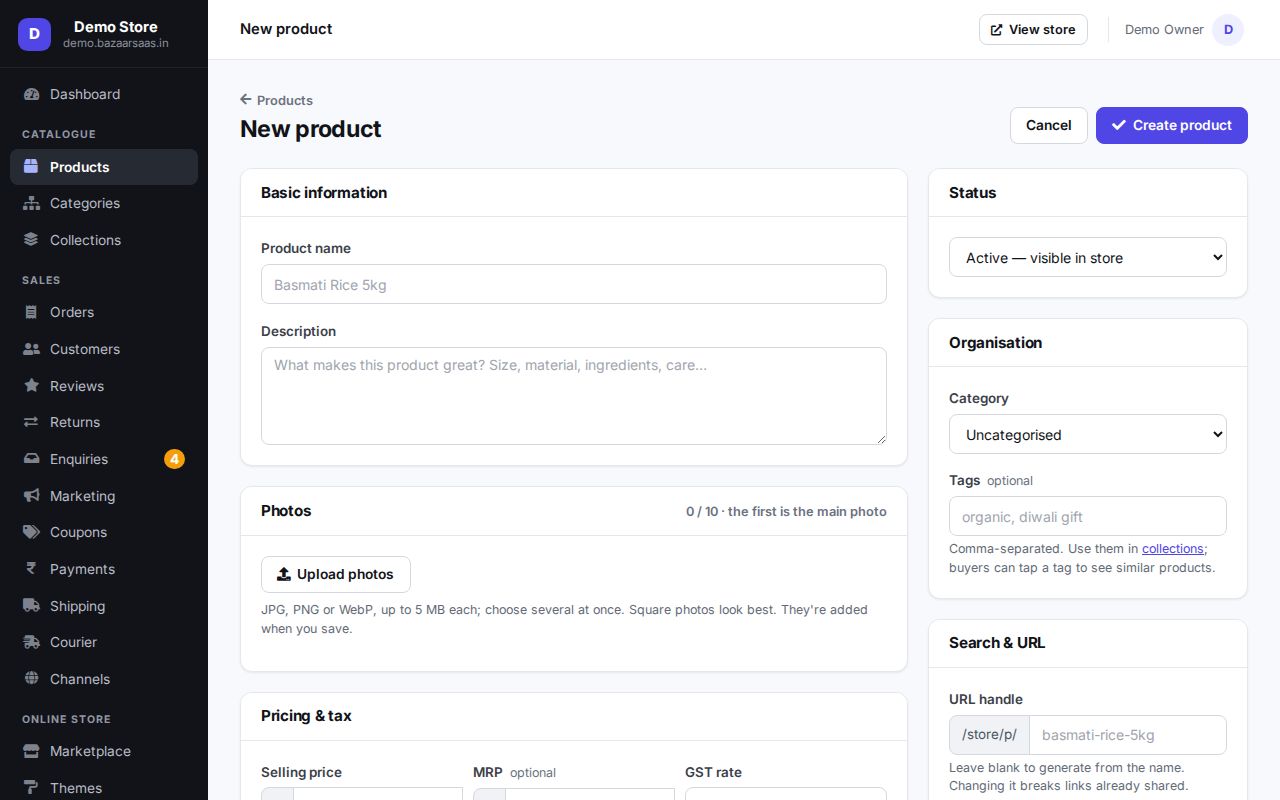
Products → Add product. The fields that matter most:
| Field | What to enter |
|---|---|
| Name and description | What buyers see on the product page. |
| Price | The selling price including GST. An optional MRP (compare-at price) shows the discount. |
| HSN code and GST rate | Needed for correct GST invoices — see GST & invoices. |
| Stock | How many you can sell. At 0 the product shows as sold out. |
| SKU | Your own code; used to match rows on import and on marketplaces. |
| Photos | Several photos; the first is the main one. |
| Weight and size | Used by couriers for shipping charges. |
| Search & URL | Optional search-engine title and description. |
Set the status to Active to show it in the store, or keep it as a draft.
Videos
A short clip of the product in use sells better than words. Open a product and choose Videos → Add a video:
- YouTube — paste the video's link from its Share button (
youtu.be/…,youtube.com/watch?v=…and Shorts all work). Best for longer videos; they don't use your storage. - Upload a clip — an MP4 or WebM file up to 25 MB (about a minute of phone video). A bigger file is refused with its size, so trim it or put it on YouTube.
Up to 5 videos per product. They appear after the photos in the product page's gallery with a ▶ mark; tapping one plays it in the photo's place. Your first uploaded clip also goes to the Meta (Facebook / Instagram) catalogue feed — Meta doesn't take YouTube links.
Cost price
Enter what one unit costs you in Cost price on the product (or per size / colour in the Variants table). Only your team sees it — it never appears on your store, in Google / Meta feeds, in the buyer API, or in anything sent to an AI service. You can also set it for many products at once from the product list (Set cost price) or with a cost_price column in a CSV import (a blank cell keeps the current cost; exports include it).
Every change is kept in the product's Cost price history — from what, to what, when and who. Each order line keeps the cost of the day it was ordered, so changing a cost later never rewrites past profit.
Barcodes, labels and scanning
Type or scan the EAN / UPC from the pack into Barcode on the product (or into the Variants table, one per size / colour). A barcode with the wrong last digit is refused — it was mistyped — and no two products in your store can share one. A barcode column works in CSV import and export too.
For your own goods with no barcode, tick them in the product list and choose Make missing barcodes: each gets an in-store EAN-13 starting with 2, a range no manufacturer uses. Print barcode labels opens them ready to print — an A4 sheet of 40, or one 50 × 25 mm label per page for a label printer — with the name, size, price and barcode.
The Find box at the top of every admin page takes a barcode, SKU or order number: scan it with a USB / Bluetooth scanner (it types and presses Enter for you), or tap the camera button on your phone. A product's barcode opens that product, a size's barcode opens the product with that size highlighted, and the barcode on a packing slip opens the order.
Sizes and colours (variants)
Give the product option names (for example Size and Colour) and add each combination as a variant with its own price, stock and SKU. Buyers pick the variant on the product page; orders and invoices record exactly which one was bought.
Import or update many products at once
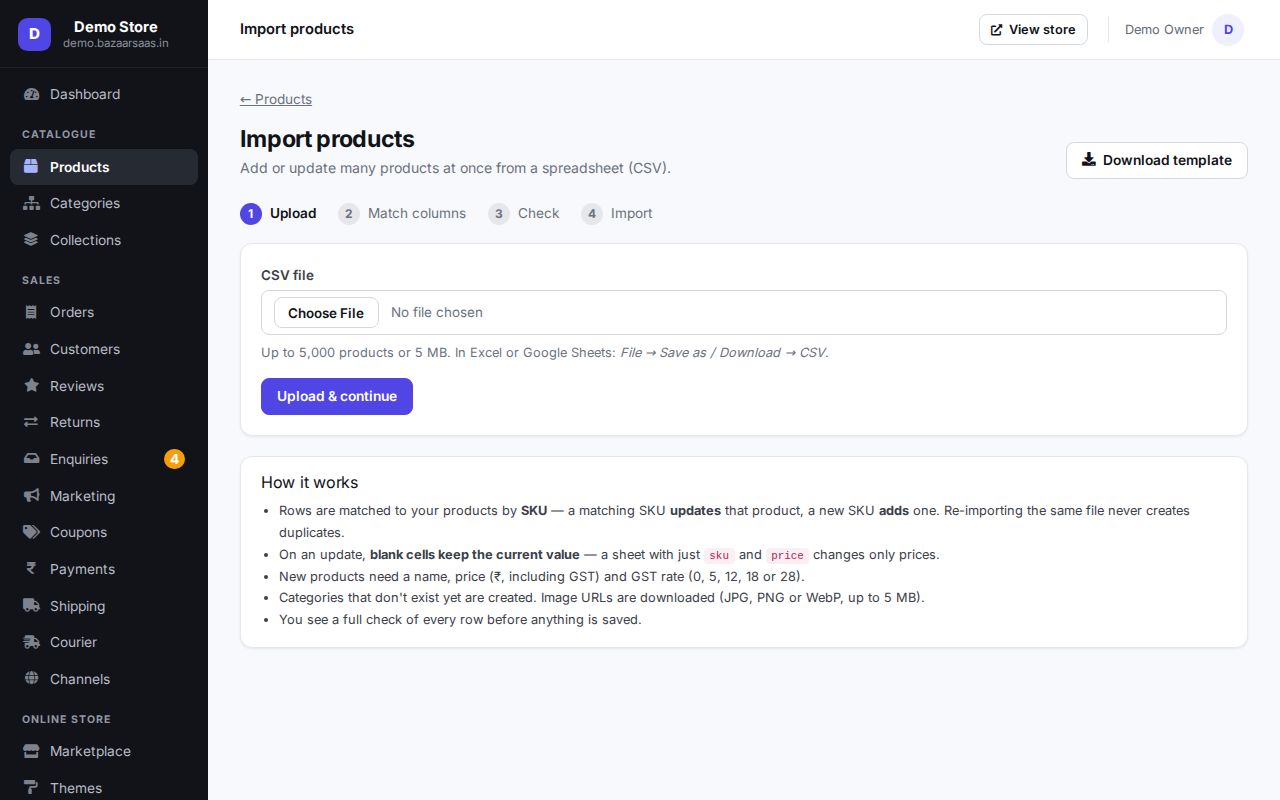
Products → Import takes a CSV file:
- Upload the file — columns are matched automatically (common Shopify, WooCommerce and marketplace names such as GST %, Qty and MRP are recognised); fix any mapping by hand.
- Read the check report: every row with a problem (wrong GST slab, duplicate SKU, missing price, bad HSN…) is listed before anything is saved.
- Import. Rows whose SKU already exists update that product; new SKUs create products.
You can also export your products to CSV and bulk edit prices, stock and status from the product list.
Categories, collections and tags
- Categories — the main menu of your store (Sarees, Kurtas…). A product belongs to one.
- Collections — hand-picked groups (Diwali picks) or smart collections that fill themselves from rules such as a tag or a price range.
- Tags — free labels you add to products and use in smart collections.
- Brands — who makes it (Fabindia, Prestige…). Type the brand on the product (a new name makes a new
brand), set it on many products at once from the product list (Set brand), or fill the CSV's brand
column. In Products → Brands add each brand's logo and description. Every brand gets its own page,
/store/brand/<name>, with its logo and products; shoppers can filter any listing by brand; the product page shows the brand, and Google / Meta product feeds and search results carry it. Deleting a brand keeps its products on sale, without a brand.
"Also on" Amazon, Flipkart and Meesho
Selling the same product on a marketplace too? Paste its address under Marketplace links on the product —
Amazon, Flipkart, Meesho, JioMart, Snapdeal or any other shop. Each box takes only that marketplace's address
(an Amazon box refuses a Flipkart or other link, so a wrong paste can't send buyers elsewhere); short links such as
amzn.to and fkrt.it work. The product page then shows Also on: Buy on Amazon buttons for buyers who'd
rather order there. To hide every button at once — say while a marketplace listing is paused — untick
Channels → "Also on" buttons; your links are kept for when you turn it back on.
Combos and gift sets
Sell several products together at one price — 2 neem soaps + 1 towel, a Diwali pooja set. Create the combo as a product of its own (name, photos, price), save it, then choose Combo → Make this a combo and add its items with how many of each go in one combo (for an item with sizes / colours, pick the size). Then:
- Stock is worked out for you: as many combos as full sets the items allow — 10 soaps and 3 towels make 3 combos. Change the items' stock, not the combo's.
- Selling a combo takes its items off their shelves (2 soaps and 1 towel); a cancellation or a return puts them back. Each item's stock history shows the combo it went in.
- GST: a combo sold for one price is a mixed supply, so the whole combo is taxed at the highest rate among its items, with that item's HSN code — set for you on the combo.
- The product page lists In this combo with links to each item.
A product with sizes / colours can't itself be a combo, and a combo can't contain another combo.
Stock and low-stock alerts
Every stock change — an edit, an import, an order, a cancellation, a return or a manual adjustment with a reason (restock, damaged, count correction) — is written to the product's stock history, with who and when. Set a low-stock level in Settings → Inventory (or per product) to get an alert before you run out.
Stock-take
Once in a while, count what's really on the shelves. Products → Stock-take → Start a count (the whole store or one category) lists every item with the stock the system expects. Count it any way you like:
- scan each piece — every scan of a barcode or SKU adds 1 to that item;
- type the counts into the list and press Save counts;
- or upload a CSV with a sku or barcode column and a count column.
Each item shows its difference — short in red, extra in green — and its value at your cost price, with totals at the top. Apply to stock sets every counted item to its count (items left blank keep their stock); each change goes into the stock history as Stock-take. The count is kept, read-only, with the stock each item had when it was applied. Only one count can be open at a time.
Damaged, expired or lost stock
Products → Stock losses (or Write it off on a product) takes broken, expired, lost or stolen units off stock with a reason, a note and a photo if you have one. Each write-off is valued at the product's cost price and shows in the loss report for its month — units and value, totalled by reason, with a CSV download — and in the product's stock history as Written off.
Monthly stock report
Reports → Stock report shows each product's month from its stock history: opening stock, what came in (received — restocks, imports, stock-take gains — and returned), what went out (sold, net of cancelled orders; lost; adjusted out) and closing stock, which is always opening + in − out. The closing stock is valued at your cost price, with the store's total at the top. Two lists show stock that isn't moving: dead stock (none sold in the last 90 days) and slow stock (would take more than 90 days to sell at the recent pace). Download it all as CSV.
If a product's stock was changed outside BazaarSaaS, the report marks the difference as not in the stock history.
Items in an unpaid order are held for a while so two buyers can't buy the last piece; if the payment doesn't come, they go back on sale automatically.
Still stuck? Talk to us — we'll help you set it up. Talk to us